
System Administration Essentials for Engineers
- 發佈時間
This post condenses the concepts and tools from a System Administration course that I actually use in my day-to-day work, organized here for reference.
Package repository mirror#
Package repository mirrors are servers distributed across different regions that store and distribute the software packages and updates an operating system needs. When a user or system administrator installs or updates software, the package manager (e.g. Ubuntu's APT, Red Hat's YUM, FreeBSD's PKG, etc.) connects to one of these mirrors to download the packages.
This is actually an important concept to understand: the files you download through apt are really being pulled from servers scattered around the world. So if a download fails or feels too slow, try editing /etc/apt/sources.list to switch to a different mirror — that alone can often fix the problem. For example, Taiwan's National Center for High-performance Computing (NCHC) also provides its own mirror: http://free.nchc.org.tw/ubuntu/
SFTP server#
SFTP (Secure File Transfer Protocol) is essentially one of the most commonly used tools for securely transferring and managing files between a local machine and a remote server, or between two remote servers.
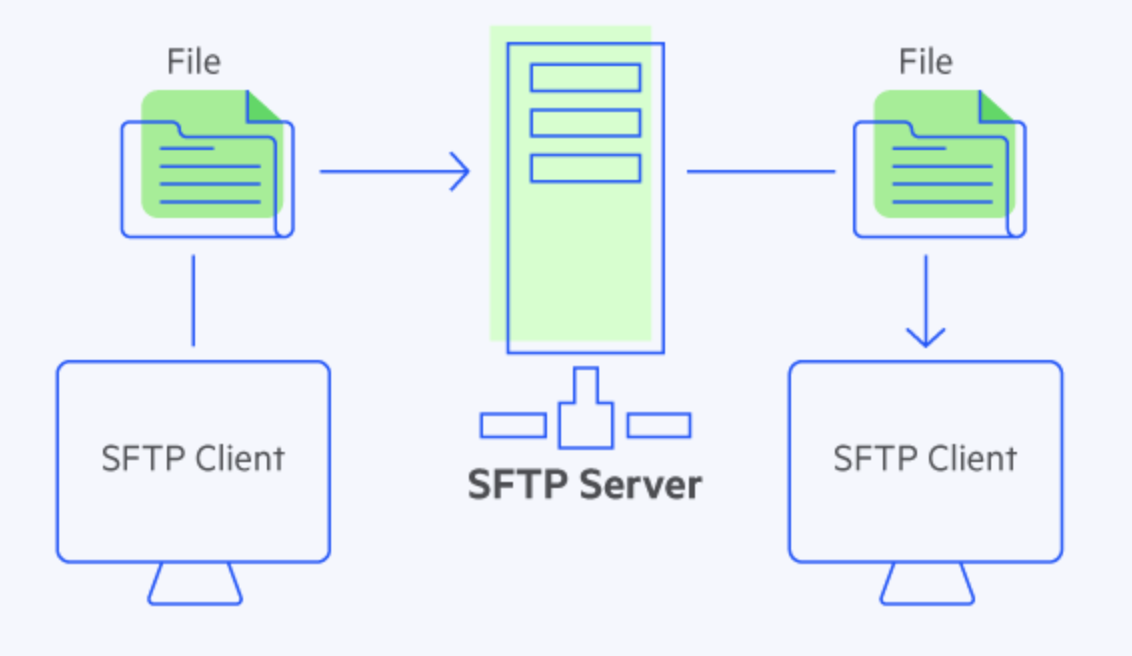
This mostly comes up when I'm connected to a remote server and need to grab training outputs — photos or videos — from it. That's where SFTP comes in, for example:
-
Opening an interactive SFTP shell directly
已複製!sftp user@192.168.xxx.xxxput local_file.txt(upload)get remote_file.txt(download)
Symbolic Link#
This is another genuinely useful tool. When training models, we save checkpoints along the way, and since checkpoint files can be huge, we often store them on a separate disk. But if I had to look up that disk's full path every time I ran inference, it would be inconvenient — and copying the file into the current folder every time isn't practical either. Here's an example of how to handle it:
已複製!# Syntax: ln -s <path to the actual large file> <shortcut path inside the project>
ln -s /mnt/nvme_disk/models/checkpoint_epoch_100.pt ~/project/weights/latest.pt
In your code
已複製!import torch

# Read directly from the shortcut — the system automatically follows it to the real file on the external disk
checkpoint_path = "weights/latest.pt"
model.load_state_dict(torch.load(checkpoint_path))
Linux#
Below is what I consider genuinely important: having a clear picture of the filesystem layout on a Linux server, so that when something breaks, you know exactly where to look.
1. Users and home directories#
home: Where every user's personal folders live. Each regular user's desktop, documents, downloads,~/.bashrc, and personal environment settings all live here.root: The dedicated home directory of the root (superuser) account. For security reasons, root's home directory isn't placed under/home/root— it lives independently at/root.
2. Binaries and executables#
bin(Binaries): Holds the most fundamental, core commands on the system (e.g.ls,cd,cp,bash,cat).sbin(System Binaries): Holds administrative commands meant for the system administrator (e.g.reboot,fdisk,ifconfig,iptables).usr(User System Resources): One of the largest directories, holding binaries and packages that aren't required for the system to boot but that regular usage depends on:/usr/bin: Most installed CLI tools (e.g.python3,git,docker,nvcc)./usr/lib//usr/lib64: Shared dynamic libraries (.sofiles) needed by the system and programs./usr/local: The default location for software you compile or install manually yourself (not overwritten by system package managers likeapt/yum).
lib/lib64: Holds the key shared dynamic libraries (.sofiles) that the core commands under/binand/sbindepend on.
3. Configuration, changing data, and temp space#
etc(Editable Text Configuration): Where all system-wide text configuration files live. For example the account/password file (/etc/passwd), network configuration (/etc/netplan), environment variables (/etc/environment), Docker configuration, and more.var(Variable Data): Holds data that changes frequently during runtime. For example system logs (/var/log), Docker images and container data (/var/lib/docker), database files, and so on.tmp(Temporary): A scratch space. All users and programs can read and write here, and it's automatically cleared on reboot.
4. Hardware, virtual filesystems, and mount points#
dev(Devices): Where hardware device files live. Linux abstracts hardware as files (e.g./dev/sdais a hard disk,/dev/nvidia*are NVIDIA GPU devices).proc(Processes): A virtual filesystem. It occupies no actual disk space and instead dynamically reflects the current state of the Linux kernel and running processes (e.g./proc/cpuinfoor/proc/meminfo).sys(System): A virtual filesystem. Reflects the structured management data the Linux kernel keeps for hardware devices, driver modules, and buses.mnt(Mount): The default location where a system administrator temporarily mounts external disks, USB drives, or network drives.media: The default location where modern Linux distributions (like Ubuntu) automatically mount removable devices (e.g. USB drives, optical discs) — for example/media/allen19/USB_NAME.
5. Third-party and optional software#
opt(Optional): Holds large, independently packaged third-party software (e.g. Google Chrome, Omniverse, certain standalone CUDA components or large package bundles).srv(Service): Holds data required for services the system provides (e.g. HTTP web server content or FTP files).boot: Holds the critical files needed to boot the Linux kernel, including the kernel image (vmlinuz), initrd/initramfs, and the GRUB boot menu configuration.
Commands I reach for fairly often#
df -h .#
Without the ., this lists the space usage of every disk and mount point on the entire Linux system. Adding . shows the status of whichever disk the current folder happens to be mounted on. This comes up a lot when sharing space with multiple users — before downloading or installing anything, you need to confirm how much space is actually available, otherwise you risk taking down the server. If space is running low, just pick a different location to download to and connect it back with a symbolic link as described above.
taskset#
The section above was about hardware/disk resources; this one is about CPU resources. Since a remote server is shared, if I hog all the resources, nobody else can get work done — so it's important to limit how many cores your program is allowed to run on, leaving some capacity for everyone else.
已複製!# Restrict the program to run only on CPU cores 0 through 4
taskset -c 0-4 python train.py
If you're working in a Jupyter notebook instead:
Pinning cores with os.sched_setaffinity#
已複製!import os

# Restrict the current Jupyter kernel to only use CPU cores 0, 1, 2, 3, 4
pid = os.getpid()
os.sched_setaffinity(pid, {0, 1, 2, 3, 4})

print(f"Number of CPU cores available to the current process: {len(os.sched_getaffinity(pid))}")
Limiting the number of threads for PyTorch / NumPy / OpenMP#
已複製!import os
import torch

# 1. Limit the number of threads used by the underlying C++ / OpenMP libraries
os.environ["OMP_NUM_THREADS"] = "4"
os.environ["MKL_NUM_THREADS"] = "4"
os.environ["OPENBLAS_NUM_THREADS"] = "4"

# 2. Limit the number of threads PyTorch uses for CPU computation
torch.set_num_threads(4)

print(f"PyTorch CPU thread limit: {torch.get_num_threads()}")
As for GPU resources:
By default, as soon as PyTorch starts doing GPU computation, it pre-allocates a large chunk of VRAM (memory cache) up front. You can configure PyTorch to instead "only grab as much as it actually needs":
已複製!import os

# Enable dynamic VRAM expansion so PyTorch doesn't pre-claim all available VRAM up front
os.environ["PYTORCH_CUDA_ALLOC_CONF"] = "expandable_segments:True"
These are the ones I currently reach for most often — I'll keep adding to this list as new ones come up.