
Docker
- 發佈時間
Introduction#
Docker is an open-source platform for packaging applications and their dependencies into containers. These containers run consistently in any environment that supports Docker, which gives applications both portability and isolation — the same container behaves the same way on your laptop, in CI, and in production.
Docker is built around a handful of core concepts:
- Container: A container is a self-contained, runnable unit that bundles an application together with everything it needs — libraries, frameworks, configuration files, and so on. Containers can be started, stopped, removed, and rebuilt quickly, and each one runs in an isolated environment, which is what keeps an application's behavior consistent across different machines.
- Image: An image is the template a container is created from. It defines the container's filesystem and contents, including the application and its dependencies, and is typically built and customized using a Dockerfile.
- Dockerfile: A Dockerfile is a plain-text file that describes how to build an image. It lets you specify a base image, install the software you need, set environment variables, copy in files, and more — effectively scripting the image build process.
- Docker Hub: Docker Hub is a public registry for storing, sharing, and managing Docker images. Developers can pull thousands of official and community-maintained images from it, and can also publish their own images for others to use.
- Docker Engine: The Docker Engine is the core component responsible for building, running, and managing containers. It exposes both a command-line interface (CLI) and a RESTful API for interacting with it.
Put together, Docker offers a lightweight, portable, scalable, and easy-to-use approach to containerization, making it much simpler for developers to build, ship, and run applications.
If the relationship between containers, images, and Dockerfiles still feels a bit abstract, the diagram below should make it more concrete.
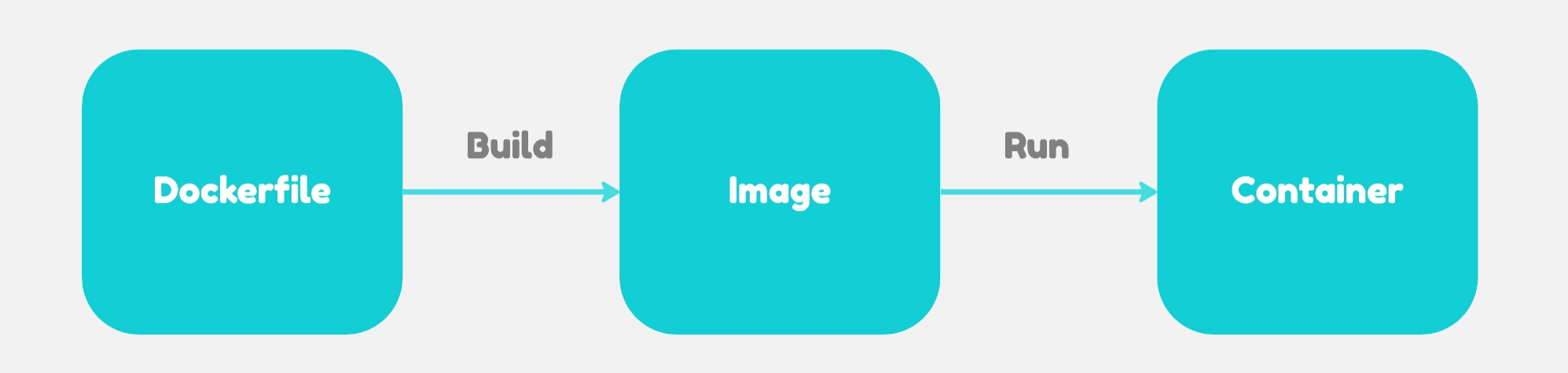
As the diagram shows, the whole pipeline starts with a Dockerfile. To make that more concrete, here are the instructions you'll commonly find in one:
已複製!FROM: The base image this image builds on. For a Python project, for example, you might use python:3.11-slim.
WORKDIR: Creates a working directory inside the image, and sets it as the location where subsequent files are placed and commands are run.
RUN: A command to execute while building the image.
COPY: Copies files from your local build context into the image.
ADD: Adds files into the image (similar to COPY, but with extra features like extracting archives).
CMD: The default command to run when a container starts.
EXPORT: The port the container exposes.
ENV: Sets environment variables inside the image.
ARG: Defines build-time variables, available only during the build process.
LABEL: Adds metadata (annotations) to the image.
VOLUME: Declares a mount point for a container's volume, typically used for persisting data.
Once you understand what a Dockerfile is, the next step is getting familiar with the Docker commands you'll use day to day — including the build and run steps shown in the diagram above.
Basic Container Commands#
| Command | What it does |
|---|---|
| docker ps | List currently running containers |
| docker ps -a | List all containers, including stopped ones |
| docker build -t <image_name> . | Build an image from a Dockerfile |
| docker run -d -p <host_port>:<container_port> --name <container_name> <image_name> | Run an image, producing a container |
| docker images | List images stored locally |
| docker stop <container_name> | Stop a running container |
| docker start <container_name> | Start a stopped container |
| docker restart <container_name> | Restart a container |
| docker rm <container_name> | Remove a container |
| docker rmi <image_name> | Remove an image |
| docker exec -it <container_name> bash | Open a shell inside a running container |
| docker logs <container_name> | View a container's logs |
Once you're comfortable with the commands above, you can already build several images and run each one in its own container. But once a project needs multiple services talking to each other, chaining together docker run commands gets unwieldy fast — you'd have to manage networking and dependencies by hand for every container. This is where docker-compose comes in: think of it as infrastructure-as-code for a multi-container application.
Here's what a typical docker-compose.yaml looks like:
已複製!version: '3.8'

# 1. Define the services (containers) to run
services:

  # ---------------------------------------------------
  # Web backend service
  # ---------------------------------------------------
  web:
    build: .                          # Build the image from the Dockerfile in the current directory
    container_name: my_web_app
    ports:
      - "8080:3000"                   # Host port (8080) : Container port (3000)
    environment:
      - NODE_ENV=development
      - DB_HOST=db                    # Use the service name directly as the hostname!
      - DB_PORT=5432
      - REDIS_HOST=cache
    depends_on:
      db:
        condition: service_healthy    # Only start web once the DB is fully up and healthy
      cache:
        condition: service_started
    networks:
      - app-network
    restart: always

  # ---------------------------------------------------
  # PostgreSQL database service
  # ---------------------------------------------------
  db:
    image: postgres:15-alpine         # Pull the official image straight from Docker Hub
    container_name: my_postgres_db
    environment:
      POSTGRES_USER: root
      POSTGRES_PASSWORD: mysecretpassword
      POSTGRES_DB: mydatabase
    volumes:
      - postgres_data:/var/lib/postgresql/data  # Persist data so it survives container removal
    healthcheck:                       # Health check: confirm the DB can actually accept connections
      test: ["CMD-SHELL", "pg_isready -U root -d mydatabase"]
      interval: 5s
      timeout: 5s
      retries: 5
    networks:
      - app-network
    restart: always

  # ---------------------------------------------------
  # Redis cache service
  # ---------------------------------------------------
  cache:
    image: redis:7-alpine
    container_name: my_redis_cache
    networks:
      - app-network
    restart: always

# 2. Define persistent volumes
volumes:
  postgres_data:                       # A named volume for the database to use

# 3. Define the internal network for inter-container communication
networks:
  app-network:
    driver: bridge                     # Lets containers talk to each other by service name
Once you're familiar with the structure of a Compose file, here are the Docker Compose commands you'll reach for most often.
Common Docker Compose Commands#
| Command | What it does |
|---|---|
| docker-compose up | Start all services |
| docker-compose up -d | Start services in the background (detached mode) |
| docker-compose down | Stop and remove containers and networks |
| docker-compose down -v | Same as above, and also removes volumes |
| docker-compose build | Rebuild images from the Dockerfile |
| docker-compose build --no-cache | Rebuild images without using the build cache |
| docker-compose restart | Restart all services |
| docker-compose logs | View logs for all services |
| docker-compose logs -f | Follow logs in real time |
| docker-compose exec <service> bash | Open a shell inside a specific service's container |
| docker-compose run <service> <command> | Run a one-off command inside a service's container (e.g. bash, migrate) |
Cleanup Commands (to Save Disk Space)#
| Command | What it does |
|---|---|
| docker system prune | Remove all unused containers, networks, and dangling images |
| docker volume prune | Remove all unused volumes |
| docker image prune -a | Remove all unused images |
Containers are a foundational technology because they let you package up an entire environment — system-level and application-level dependencies alike — into a single, portable unit. As long as you have enough memory available, that whole system can be spun up with a single command. From here, the natural next step is Kubernetes, which builds on these same container concepts to orchestrate many containers at scale — a topic for a future post.