tmux
- Published time
Introduction#
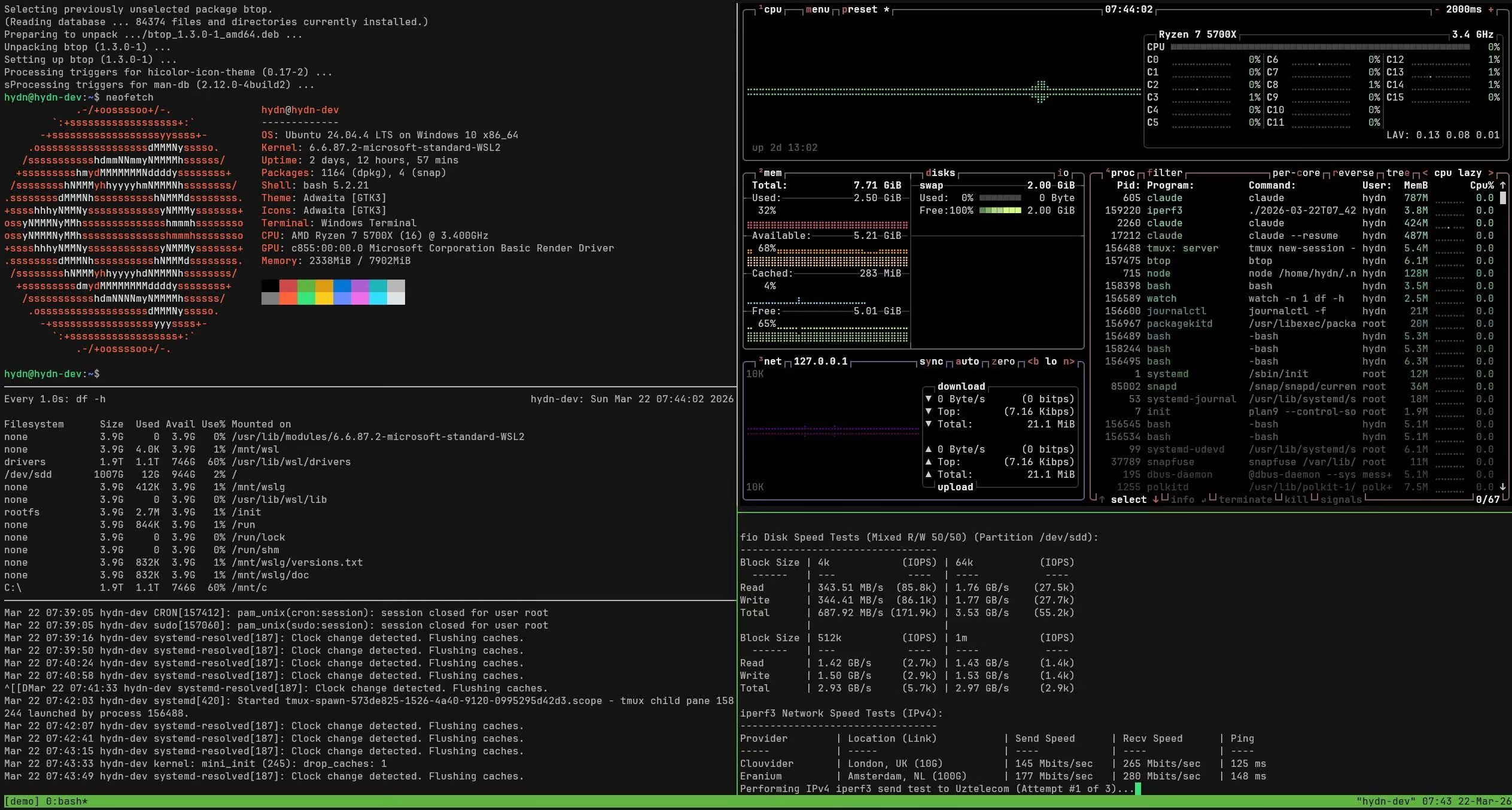
tmux — short for terminal multiplexer — lets you run many terminal sessions inside a single window. Instead of opening a new terminal tab every time you need to tail a log, run a build, and edit a file at the same time, you split one window into panes and move between them with a couple of keystrokes.
The other half of what makes tmux worth learning is persistence. A tmux session keeps running on the machine even after you disconnect, so a long-running job on a remote server survives a dropped SSH connection. Reconnect, reattach to the session, and everything is exactly where you left it — the same reason tmux is a standard tool on any box you reach over SSH.
This post walks through the three layers tmux is built from, the keybindings for each layer, and a ~/.tmux.conf that makes the defaults easier to live with.
Core Concepts#
tmux is organized in three nested levels. Almost everything else makes sense once these are clear:
- Session: The top-level container. A session holds one or more windows, and it's the thing that keeps running in the background after you detach. Killing your terminal doesn't kill the session.
- Window: Roughly equivalent to a tab. Each window fills the whole terminal and belongs to exactly one session. Windows are numbered starting at 0, and the numbers appear in the status bar along the bottom of the screen.
- Pane: A subdivision of a window. Splitting a window gives you two panes — side by side or stacked — each running its own independent shell.
So the hierarchy reads: a session contains windows, and a window contains panes.
The Prefix Key#
Almost every tmux command starts with a prefix key. You press the prefix, release it, then press the command key — they are not held down together.
The default prefix is Ctrl+b, and it's written as <prefix> throughout this post. So <prefix> c means: press Ctrl+b, release, then press c.
The prefix exists so tmux's shortcuts don't collide with the shortcuts of whatever is running inside the pane. Without it, c would be ambiguous — tmux couldn't tell whether you meant "new window" or you were just typing a letter into Vim.
Working with Sessions#
Sessions are managed partly from your shell (before you're inside tmux) and partly from keybindings (once you're in).
From the shell:
| Command | What it does |
|---|---|
tmux | Start a new unnamed session |
tmux new -s <name> | Start a new session with a name you'll recognize later |
tmux ls | List the sessions currently running on this machine |
tmux attach -t <name> | Reattach to an existing session |
From inside tmux:
| Keybinding | What it does |
|---|---|
<prefix> d | Detach — leave the session running and return to your normal shell |
<prefix> s | Show a list of sessions and switch between them |
<prefix> $ | Rename the current session |
<prefix> : | Open the tmux command prompt (e.g. type new -s 0 to create a session named 0) |
Detach and reattach are the pair that make remote work safe: start a long job, press <prefix> d, close your laptop, and pick the session back up later with tmux attach.
Working with Windows#
Windows are the tab-like layer. These are the bindings you'll reach for constantly:
| Keybinding | What it does |
|---|---|
<prefix> c | Create a new window |
<prefix> & | Close the current window (asks for confirmation first) |
<prefix> 0–<prefix> 9 | Jump straight to the window with that number |
<prefix> n | Move to the next window |
<prefix> , | Rename the current window |
<prefix> w | Show a list of windows to pick from |
Because the window number is always visible in the status bar, jumping directly with <prefix> 1 is usually faster than cycling with <prefix> n. Renaming windows to match what they're doing — server, logs, edit — makes that list far easier to scan once you have more than three or four open.
Working with Panes#
Panes are where tmux earns its keep. Splitting a window means you can watch a server's output while editing code beside it, without ever leaving the terminal.
Creating and closing panes:
| Keybinding | What it does |
|---|---|
<prefix> | | Split into two panes, side by side |
<prefix> - | Split into two panes, one above the other |
<prefix> x | Close the current pane (asks for confirmation first) |
Moving between panes:
| Keybinding | What it does |
|---|---|
<prefix> h j k l | Move the cursor to the pane left / down / up / right |
<prefix> q | Briefly display each pane's number |
Rearranging and resizing:
| Keybinding | What it does |
|---|---|
<prefix> arrow keys | Resize the current pane in that direction |
<prefix> space | Cycle through tmux's built-in layouts |
<prefix> { | Swap the current pane with the previous one |
<prefix> } | Swap the current pane with the next one |
Three of these aren't tmux's defaults — they come from the config in the next section, so they won't work until you've set it up:
- Out of the box, tmux splits with
<prefix> %and<prefix> ". Neither symbol suggests a direction, which makes them hard to remember. Rebinding them to|and-means the key looks like the split it produces. hjklfor pane navigation borrows Vim's direction keys, so movement stays on the home row instead of reaching for the arrow keys.
Configuring tmux#
tmux reads its configuration from ~/.tmux.conf. The file below sets up the directional splits and Vim-style navigation described above, adds shortcuts for switching layouts, and pulls in tpm — the tmux plugin manager — so plugins can be installed one line at a time.
Copied!# List of plugins
set -g @plugin 'tmux-plugins/tpm'
set -g @plugin 'tmux-plugins/tmux-sensible'

# Create vertical split
unbind '|'
bind '|' split-window -h

# Create horizontal split
unbind '-'
bind - split-window -v

# Navigate
bind h select-pane -L
bind j select-pane -D
bind k select-pane -U
bind l select-pane -R

# ctrl+b c -> new window
# ctrl+b , -> rename current window
# ctrl+b w -> show list of windows and sessions

# switch session
# ctrl+b : -> new -s 0 -> new session with name '0'
# ctrl+b $ -> rename current session
# ctrl+b s -> show list of session

unbind J
unbind K
unbind L
bind J select-layout even-horizontal
bind K select-layout even-vertical
bind L select-layout tiled
bind C-j select-layout main-horizontal
bind C-k select-layout main-vertical

unbind r
bind r source-file ~/.tmux.conf \; display-message -d 2000 "Configuration reloaded!"

# Other examples:
# set -g @plugin 'github_username/plugin_name'
# set -g @plugin 'git@github.com/user/plugin'
# set -g @plugin 'git@bitbucket.com/user/plugin'
# Initialize TMUX plugin manager (keep this line at the very bottom of tmux.conf)
run -b '~/.tmux/plugins/tpm/tpm'
What Each Section Does#
- Plugins.
set -g @pluginregisters a plugin for tpm to manage.tmux-sensibleis a good first one: it applies a set of defaults most people end up configuring by hand anyway. unbindbeforebind.|and-already mean something in tmux, so the old binding is removed before the new one is attached. Skipping theunbindcan leave the previous behavior in place.- Splits.
split-window -hsplits horizontally in tmux's terminology, which produces two panes side by side;-vproduces two panes stacked. The naming trips people up, so it's worth reading the flags as "the axis the panes sit along" rather than the direction of the divider. - Navigation.
select-pane -L/-D/-U/-Rmoves the cursor left, down, up, and right — bound here tohjklto match Vim. - Layouts.
J,K, andLswitch between tmux's preset layouts:even-horizontallines panes up in a row,even-verticalstacks them, andtiledarranges them in a grid.C-jandC-kselectmain-horizontalandmain-vertical, which give you one large pane with the rest arranged alongside it — useful when one pane is the thing you're working in and the others are just monitors. - Reloading.
<prefix> rre-reads~/.tmux.confand flashes "Configuration reloaded!" for two seconds. Without it you'd have to restart the tmux server every time you change a setting, so it's the first binding worth adding while you're still tweaking the file. - tpm initialization.
run -b '~/.tmux/plugins/tpm/tpm'must stay at the very bottom — tpm needs to see every@pluginline above it before it runs.
To use this config, save it as ~/.tmux.conf and either restart tmux or run tmux source-file ~/.tmux.conf once. Installing tpm itself is a one-time git clone into ~/.tmux/plugins/tpm, after which <prefix> I installs everything listed in the file.
Wrapping Up#
The bindings above cover the day-to-day work: detaching and reattaching sessions, creating and switching windows, splitting and navigating panes, and reshaping the layout when the split you started with stops fitting the task. Those are worth committing to muscle memory first, since they're the ones you'll press hundreds of times a week.
Once they feel automatic, the config file is where tmux becomes genuinely yours — remapping awkward defaults into keys that match how you think, and layering on plugins through tpm as you find gaps worth filling.